What Are Keyword Actions?
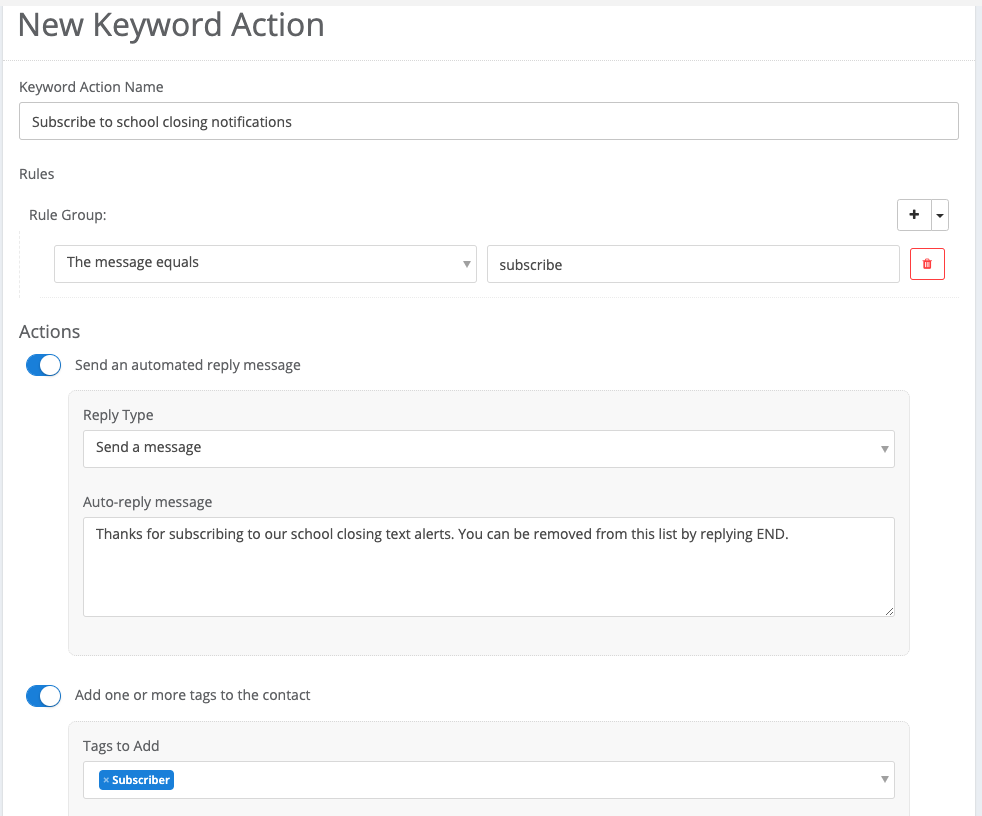
Keyword Actions allow Captivated to automatically take action when an incoming message matches rules you define. Think of it as: When a contact sends a message that matches these rules → Captivated automatically performs these actions. Keyword Actions can:- Send an automated reply or Message Template.
- Add one or more Tags to the contact.
- Remove one or more Tags from the contact.
- Perform multiple actions at the same time.
Create a Keyword Action
To create a Keyword Action:- Open Administration.
- Select Keyword Actions.
- Create a new Keyword Action.
- Add the rule or rules that should trigger the action.
- Choose whether the message must match Any or All of your rules.
- Select the action or actions Captivated should perform.
- Save your changes.
- Open the Channels tab and select the Channels where the Keyword Action should be active.
Set Your Rules
Rules determine which incoming messages trigger your Keyword Action. You can create a single rule or combine multiple rules. When using multiple rules, choose:Choose What Happens Next
Once the rules are met, Captivated can automatically perform one or more actions.Send an Auto-Reply
Send a custom message or an existing Message Template automatically. This is useful for providing information customers frequently request without requiring someone on your team to respond manually.Add Tags
Automatically add one or more Tags to the contact’s record. Tags can help you organize contacts and create targeted groups for future communication.In the Administration section of Captivated, Administrators can set up Keyword Actions that trigger an auto-reply. With our latest update, you can now add or remove tags when a keyword is sent to your number in Captivated.Remove Tags
Automatically remove one or more Tags from the contact’s record. This is especially helpful when customers use keywords to manage their communication preferences.Ways to Use Keyword Actions
Keyword Actions can automate a variety of common customer interactions.Answer Frequently Asked Questions
Create keywords that automatically provide commonly requested information. Example: Customer texts:HOURSCaptivated responds with your current business hours.
Share Helpful Resources
Use keywords to automatically send customers:- Website links
- Forms
- Payment links
- Review requests
- Scheduling information
- Other frequently requested resources
Manage Contact Lists with Tags
Keyword Actions can automatically add or remove Tags based on a customer’s response. For example, a school could allow parents to text:WEATHERto be added to a Tag used for school closing and delay announcements.
Manage Communication Preferences
Keyword Actions can also help customers indicate which types of communications they’d like to receive. For example:Text SPECIALS to receive information about upcoming specials.Captivated can automatically add the appropriate Tag to that contact for future communications.
Tags are a helpful way to organize contacts, but adding a Tag does not replace any consent requirements that may apply to marketing or promotional text messages.
Apply Keyword Actions to Channels
After creating your Keyword Action, choose which Channels should use it.- Open the Keyword Action.
- Select the Channels tab.
- Choose the appropriate Channel or Channels.
- Save your changes.
Best Practices
When creating Keyword Actions:- Choose keywords that are simple and easy for customers to remember.
- Keep automated responses short and conversational.
- Test the Keyword Action before promoting it to customers.
- Make sure it’s applied to the correct Channels.
- Review your Keyword Actions periodically to ensure the information being sent is still current.
- Be careful when using Keyword Actions for promotional subscriptions or communication preferences to ensure your opt-in process meets applicable requirements