

Ways to Communicate With Your Team
There are three primary ways to communicate internally:
You can also send attachments within internal conversations, including PDFs, Word documents, spreadsheets, presentations, photos, videos, and voice memos.
Direct Chat
Use Direct Chat when you want to have a private, one-on-one conversation with another Captivated User.Start a Direct Chat
- Select the green New Message button in the top-right corner of Captivated.
- Choose Direct.
- Select the User you would like to message.
- Select Compose Message.
- Write and send your message.
If you don’t see the Direct option, this functionality may not be enabled for your account. Contact Captivated Support for assistance.
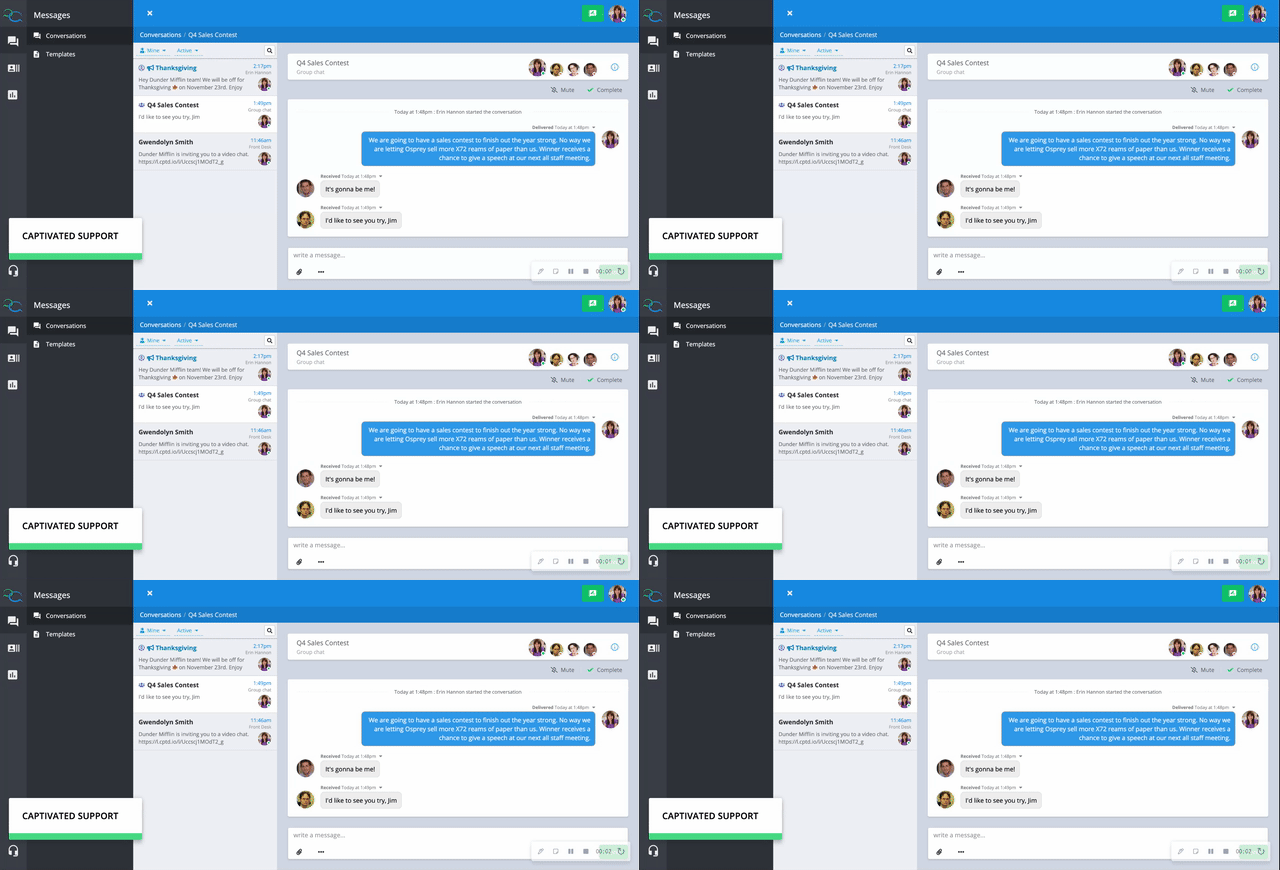
User to User Direct Chat Video Walkthrough
Team Chat
Use Team Chat when you want multiple Users to participate in the same internal conversation. Everyone in the Team Chat can see each other’s messages and responses. For example, you could create a Team Chat to discuss an internal project, coordinate an event, or communicate about a specific topic.Start a Team Chat
- Select the green New Message button.
- Choose Direct.
- Select your entire organization, a Team, or multiple individual Users.
- Enter a Subject for the Team Chat.
- Select Compose Message.
- Write and send your message.
Only the User who created the Team Chat can complete the conversation.
Mute a Team Chat
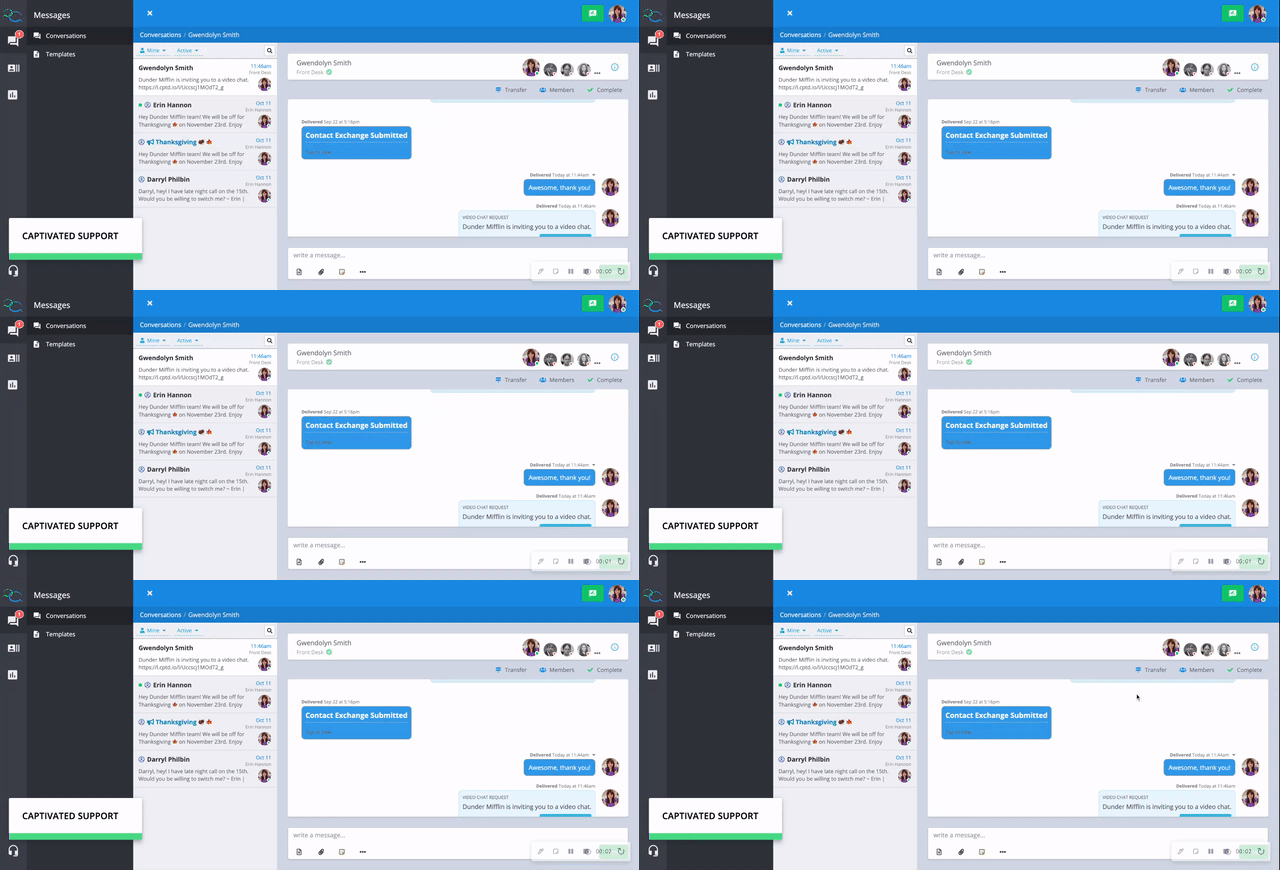
If you want to remain in a Team Chat without receiving notifications for new activity, select Mute in the upper-right corner of the conversation. Muting the conversation suppresses your notifications without removing you from the Team Chat.Team Chat Video Walkthrough
Internal Announcements
Internal Announcements allow you to send the same message to multiple Captivated Users while keeping each recipient’s response private. Unlike a Team Chat, recipients do not see one another’s replies. Each reply comes back individually to the User who sent the announcement. This is useful for things such as:- Meeting announcements
- Changes in hours
- Weather-related closings or delays
- Internal company updates
- Incentive or policy announcements
- RSVPs, surveys, or other information you need to collect individually
Send an Internal Announcement
- Select the green New Message button.
- Choose Direct.
- Select the Team or group of Users you would like to message.
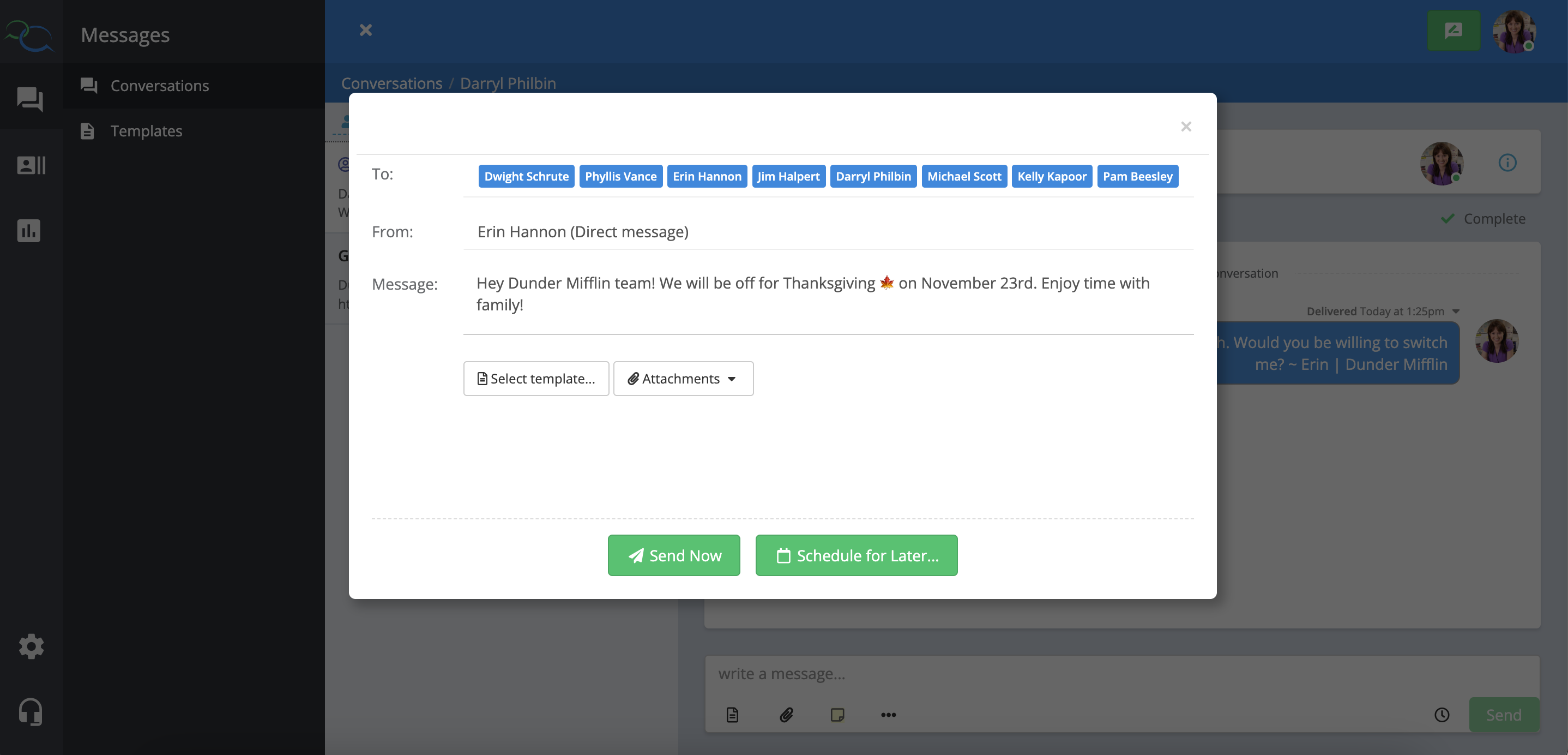
- Toggle on Send as an Announcement.
- Select Compose Message.
- Write your message or select an existing Template
- Add attachments
- Send the announcement immediately
- Schedule it to send at a future date and time
Internal Announcements may require additional access. Contact Captivated Support if you don’t see this option.
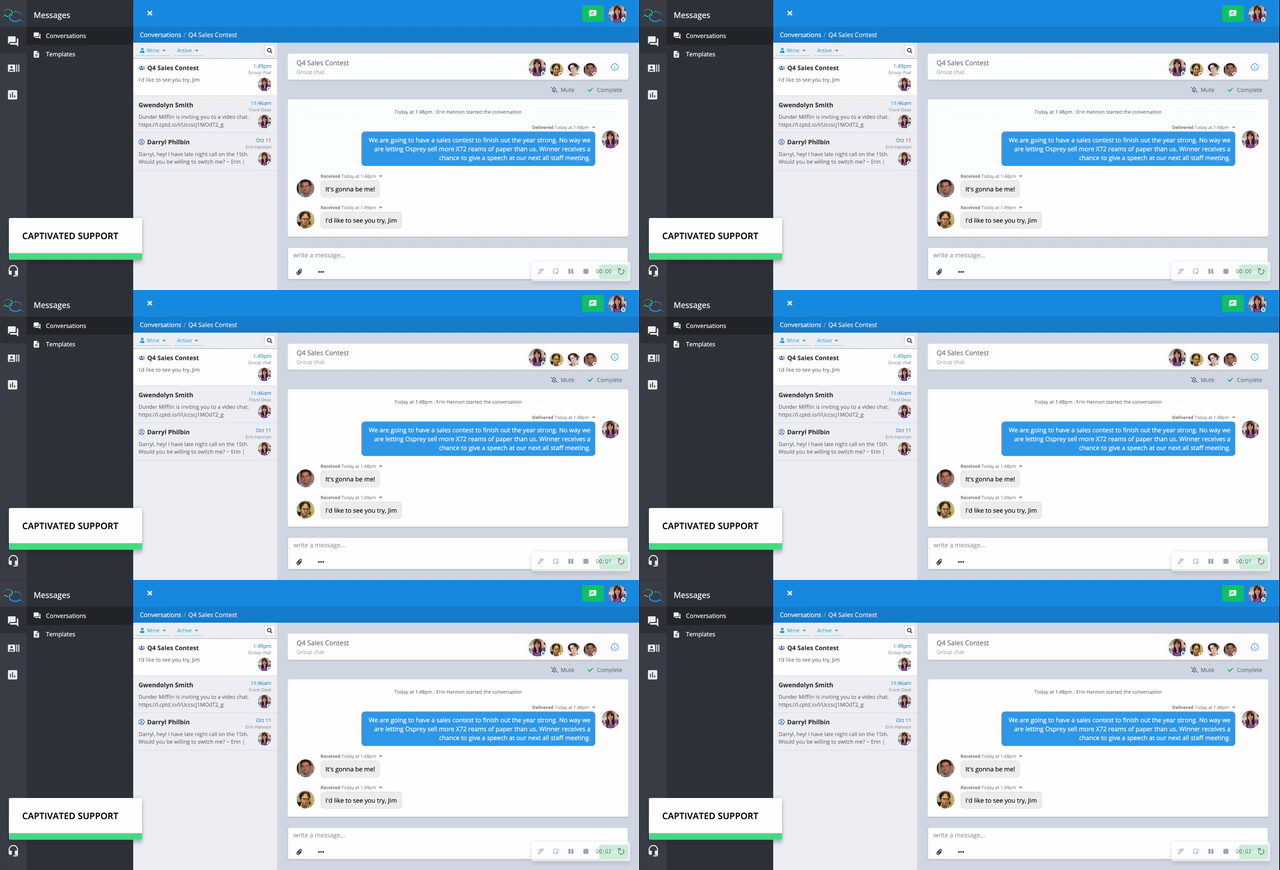
Internal Announcements (BCC Announcements) Video Walkthrough
Attachments
You can add attachments to Direct Chats, Team Chats, and Internal Announcements to share additional information with your team. Examples include:- PDFs
- Word documents
- Excel files
- Presentations
- Photos
- Videos
- Voice memos