

- Find phone numbers displayed on a webpage
- View existing Captivated conversations
- Send messages directly from the extension
- Start a new conversation
- Add new contacts to Captivated
Step 1: Install the Chrome Extension
Go to the Captivated Google Chrome extension in the Chrome Web Store. Select Add to Chrome. When prompted, select Add Extension.
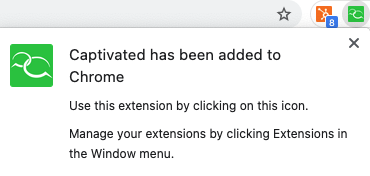
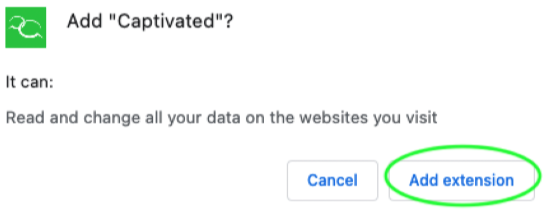 Once installed, Captivated will appear in your Chrome extensions.
Step 2: Pin Captivated to Your Browser
For easier access to the extension:- Select the puzzle piece icon in the upper-right corner of Chrome.
- Find Captivated in your extensions.
- Select the pin icon.
Step 3: Sign In to Captivated
Select the Captivated extension and enter your Captivated login credentials. Once you’re signed in, the extension can identify phone numbers displayed on the webpage you’re viewing. When phone numbers are detected, a blue indicator will show the number of contacts or phone numbers found on the page. Make sure to hit the puzzle piece and hit the push pin to add the extension to your bar. From there, you can open an existing Captivated conversation or select the green New Message button to start a message.
Step 4: Send a Message
To send a message from the extension:- Select the contact or phone number you want to message.
- Use the dropdown to select the Captivated Channel you want to send from.
- Enter your message in the Write a Message field.
- Select Send.
Add a New Contact
You can also create a new Captivated contact directly from the Chrome extension.- Select the blue person with a + icon.
- Enter the contact’s information.
- Scroll to the bottom of the form.
- Select Save.
Using the Extension With Other Platforms
The Chrome extension can be useful when your team spends most of the day working within another web-based system. For example, you can use it alongside:- HubSpot
- Salesforce
- Service Assistant
- Other web-based CRM or customer management platforms