

Forgot Your Password?
If you’re unable to log in:- Go to the Captivated login page at app.captivated.works.
- Select Forgot Your Password?
- Enter the email address associated with your Captivated account.
- Choose Reset via Email or Reset via SMS.
- Follow the instructions to create your new password.
Reset via Email
Select Reset via Email to receive a password reset link at the email address associated with your Captivated account. Look for an email with the subject Password Reset Request and select Reset Your Password. Follow the instructions to create a new password.Reset via SMS
Select Reset via SMS to receive a verification code by text message. Enter the code you receive and follow the instructions to create your new password.Reset via SMS is only available if your personal mobile number has been added to the Mobile Phone Number field in your Captivated profile.
Ask Your Administrator to Send a Password Reset
If you’re unable to reset your password yourself, a Captivated Administrator within your organization can send you a password reset email. Administrators can manage password resets from Administration > Users. Learn more about Managing Users.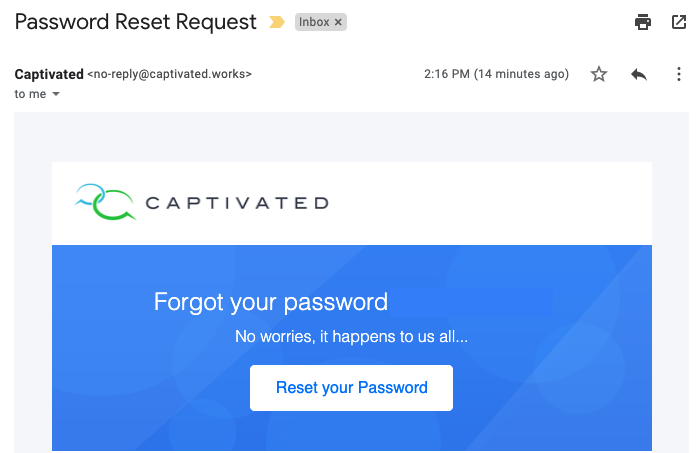
Change Your Password While Logged In
If you know your current password and simply want to change it:- Open My Profile.
- Select Password and Credentials.
- Choose Change Your Password.
- Enter your current password.
- Enter your new password.
- Select Change Password.
Password Requirements
Your new password must be at least 8 characters long. For better account security, use a password that is unique to Captivated and difficult for others to guess.Having Trouble Logging In After a Password Reset?
If you’ve successfully reset your password but still can’t log in:- Make sure you’re using your new password, not your previous one.
- If your browser or password manager automatically fills in your password, make sure it hasn’t inserted an old password.
- Manually enter your new password and try again.
- Confirm you’re using the email address associated with your Captivated account.
- If you’re still unable to log in, contact your Captivated Administrator or Captivated Support.