Images, videos, and audio are sent as MMS, and mobile carriers have limits on the size of files they will accept.
Large media files may fail to deliver. If you’re having trouble sending an image, video, or audio file, try reducing the file size and sending it again.
Because file-size limits can vary by carrier, we recommend keeping MMS attachments as small as possible to help ensure successful delivery.
Compress large images or videos before attaching them to Captivated. Reducing the file size can improve deliverability without requiring you to remove the attachment altogether.
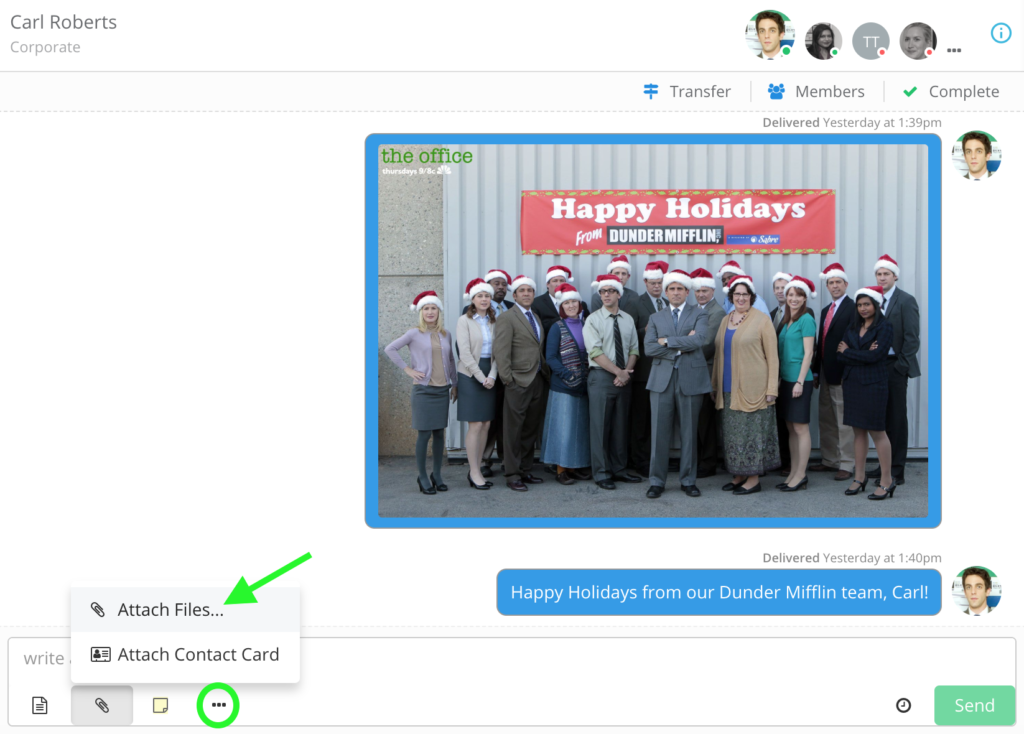
Files such as PDFs, Word documents, and Excel files can also be attached using the paperclip icon.Depending on the file type, the recipient may receive a link that allows them to open or download the attachment.


 Before sending, you can remove an attachment by selecting the X next to the file.


