Filter Your Conversations
Conversation filters allow you to control which conversations appear in your conversation list. There are two filters above the conversation list:- My Conversations / Everyone’s Conversations — controls whose conversations you see.
- Conversation Status — controls which types of conversations you see.
My Conversations vs. Everyone’s Conversations
Use the first filter to choose whose conversations you’d like to view.Not Seeing Other Users’ Conversations?
Access to Everyone’s Conversations depends on your User permissions. Managers and Administrators can view conversations they aren’t assigned or joined to. Members have more limited conversation visibility. If selecting Everyone’s Conversations doesn’t change what you see, contact your Captivated Administrator to review your User permissions.
Filter by Conversation Status
Use the second filter to control which conversations appear based on their status. Completed conversations appear grayed out and italicized in the conversation list.
Your Filters Are Remembered
Once you select your preferred filters, Captivated will remember them on that device until you change them again. Your browser and mobile app may have different saved filter selections, so you may need to set your preferred view once on each device.Search Conversations
Select the magnifying glass to search for a keyword or phrase. Captivated will return the conversations that best match your search. When a matching word or phrase is found within a conversation, opening the result will take you to the matching message and briefly highlight the matching text in yellow.Advanced Search
Use Advanced Search when you need to narrow your results using specific criteria or create a search you’ll want to use again. You can build an Advanced Search using criteria such as:- Users
- Teams
- Channels
- Contact or company name
- Tags
- Conversation status
Example
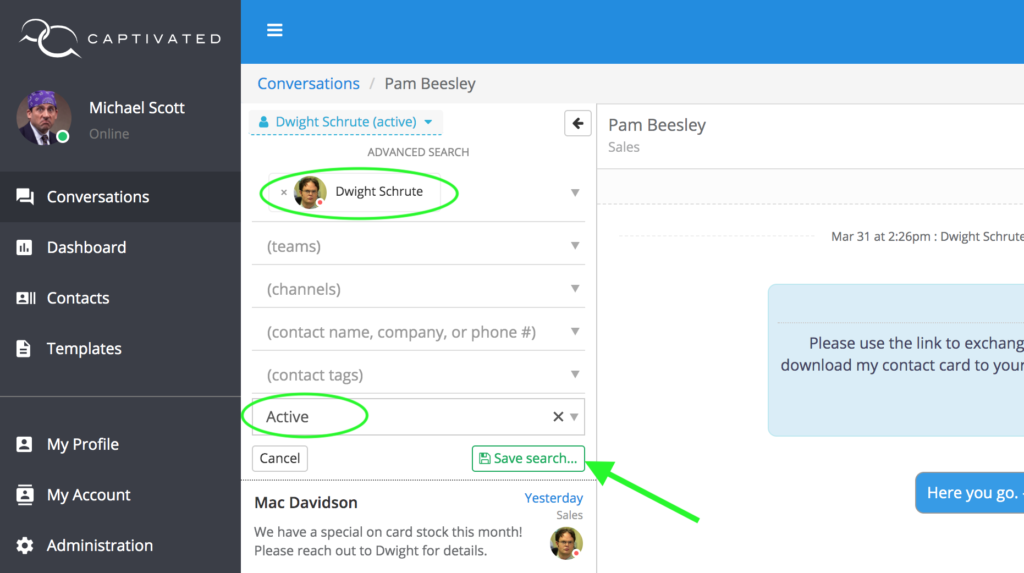
Suppose a Manager wants to quickly view all of Dwight’s active conversations. They could create an Advanced Search using: User: Dwight SchruteStatus: Active They could then save the search as Dwight’s Conversations for easy access later.
Save an Advanced Search
If you regularly use the same search criteria, save the Advanced Search instead of rebuilding it each time.- Open Advanced Search.
- Select your desired criteria.
- Give the search an easy-to-recognize name.
- Save the search.
Filter vs. Search vs. Advanced Search
Need Help?
If you’re unable to find a conversation or believe your User permissions are preventing you from seeing conversations you should have access to, contact Captivated Support using the in-app Support option.Searching for Conversations Video Walkthrough
Advanced Search 2-Minute Video Walkthrough