

Understanding Conversation Ownership
Every conversation has an owner. The owner is the User primarily responsible for the conversation and has additional actions available, including the ability to Transfer and Complete it. The conversation owner’s avatar appears as the primary User in the conversation. Other Users can also be joined to the conversation without becoming the owner. Joined Users can participate in the conversation and receive notifications, but they cannot Complete or Transfer the conversation.Take a Conversation from a Queue
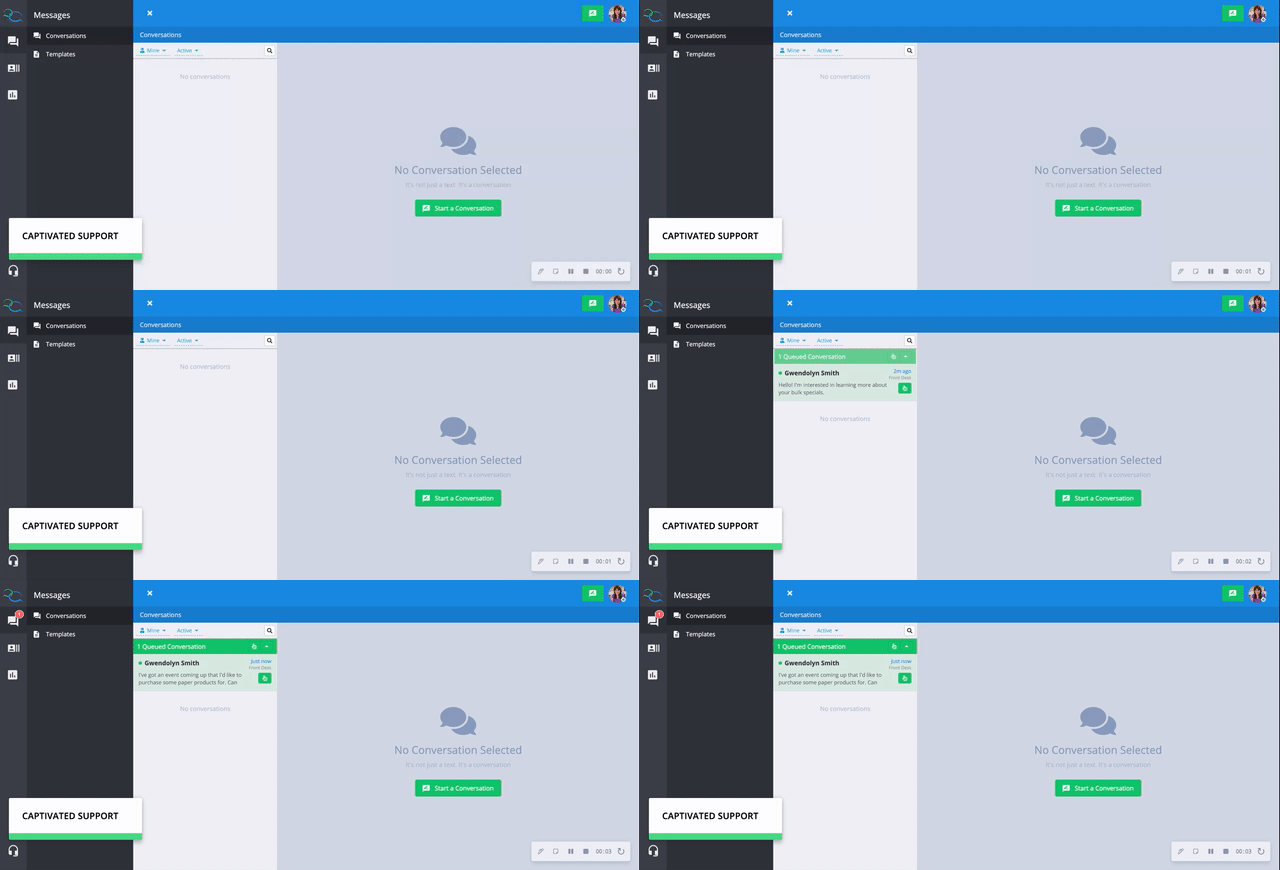
If you’re an operator of a Queue, new inbound messages may appear in the Queue waiting for someone to take ownership. To take a conversation, select the Take button from the Queue notification. If Queue previewing is enabled for your User, you can also preview waiting conversations and select the specific conversation you’d like to take. Once you take a conversation:- You become the conversation owner.
- The conversation is added to your Active conversation view.
- You can respond to the contact or transfer the conversation if someone else should handle it.
Taking a Conversation from the Queue Video Walkthrough
Transfer a Conversation
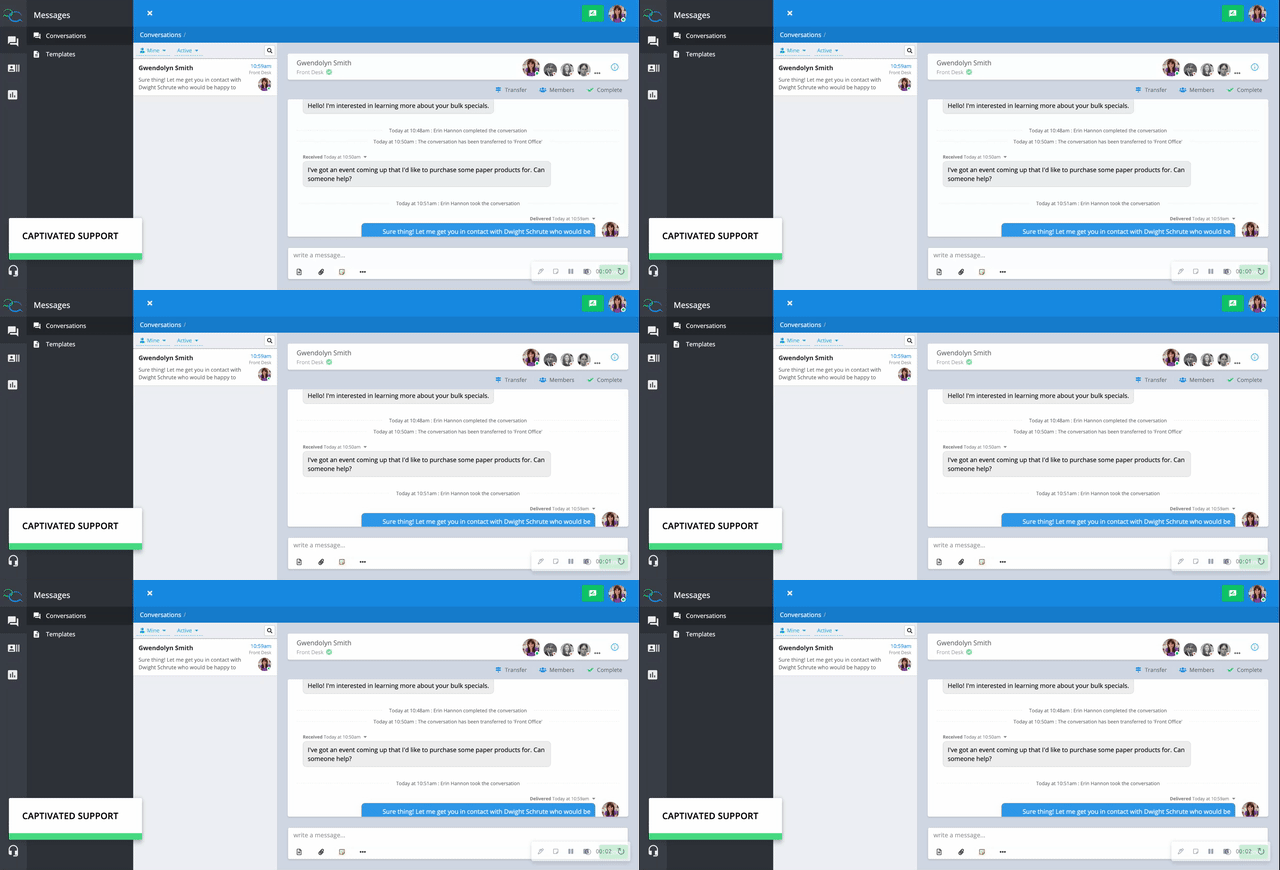
If another User or Queue should handle the conversation, you can transfer ownership. To transfer a conversation:- Open the conversation.
- Select Transfer above the conversation thread.
- Choose the User or Queue you’d like to transfer the conversation to.
Only the conversation owner can transfer a conversation.
Transferring a Conversation to another User/Queue Video Walkthrough
Add a User to a Conversation
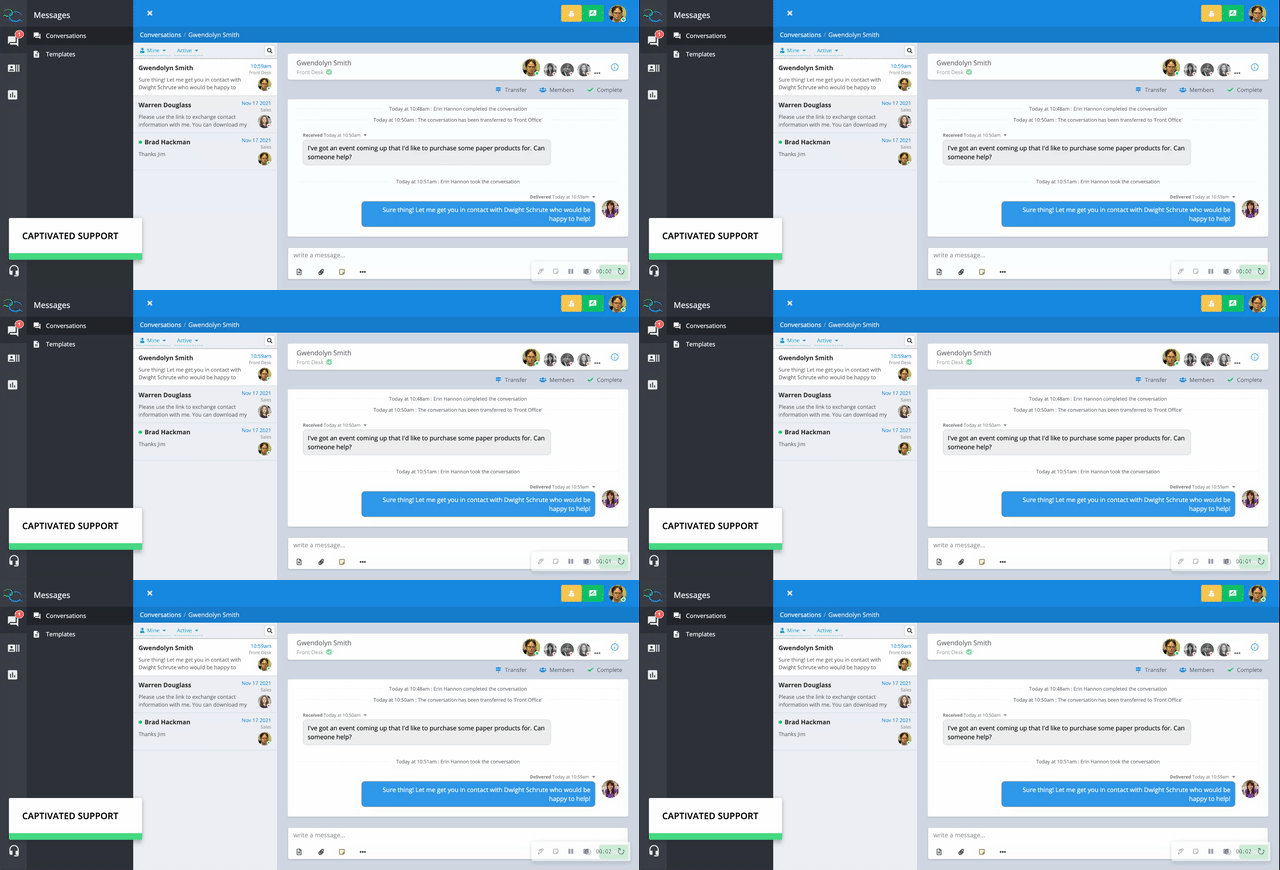
If you’d like another User to participate without giving up ownership of the conversation, add them as a member instead of transferring it. To add someone:- Select Members above the conversation.
- Choose the User you’d like to add.
- Select Add.
Adding a Team Member or Manager to a Conversation Video Walkthrough
Transfer vs. Add a Member
Join a Conversation
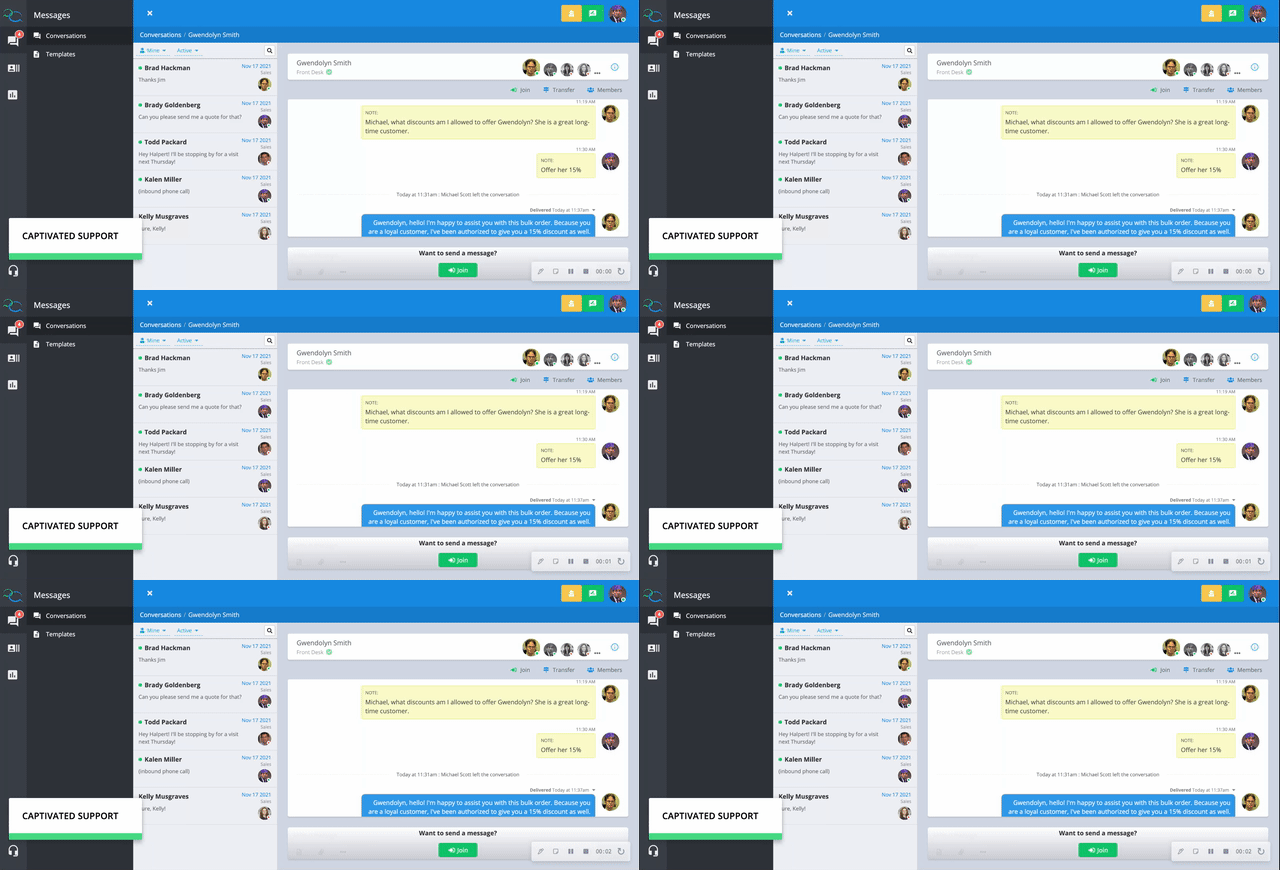
Joining a conversation makes you an active participant without changing the conversation owner. To find a conversation you’re not currently joined to, use Conversation Filters and Search to locate it. Depending on your User permissions, you may need to view Everyone’s Conversations or search for the conversation directly. Open the conversation and select Join. Once joined:- The conversation will appear in your Active conversation view.
- You’ll receive notifications about activity within the conversation.
- Your User photo will appear in color within the conversation.
- You can participate in the conversation.
Joining a Conversation Video Walkthrough
Leave a Conversation
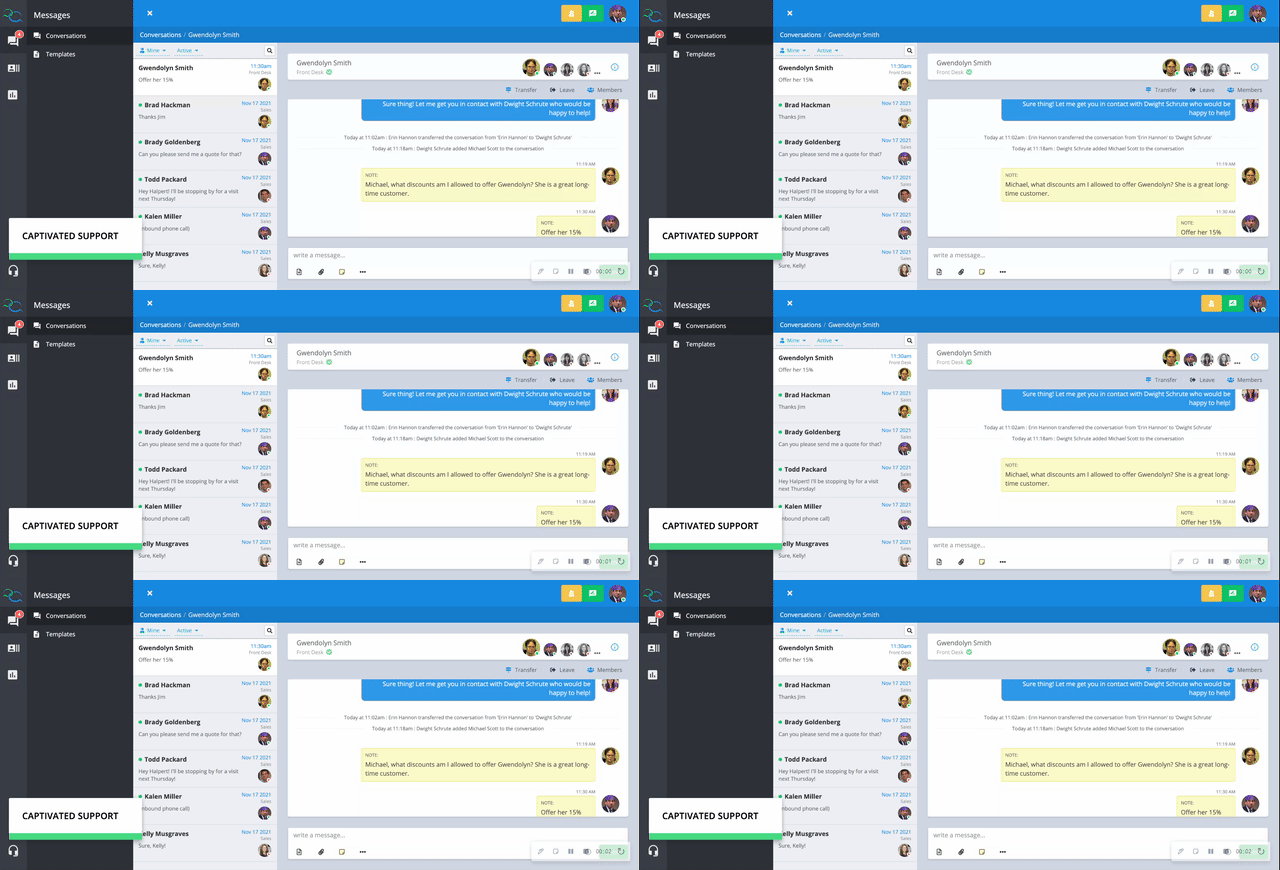
If you’re joined to a conversation but no longer need to participate, select Leave. Leaving the conversation:- Removes you as an active participant.
- Stops notifications from that conversation.
- Does not Complete the conversation or change its owner.
Leaving a Conversation Video Walkthrough
Complete a Conversation
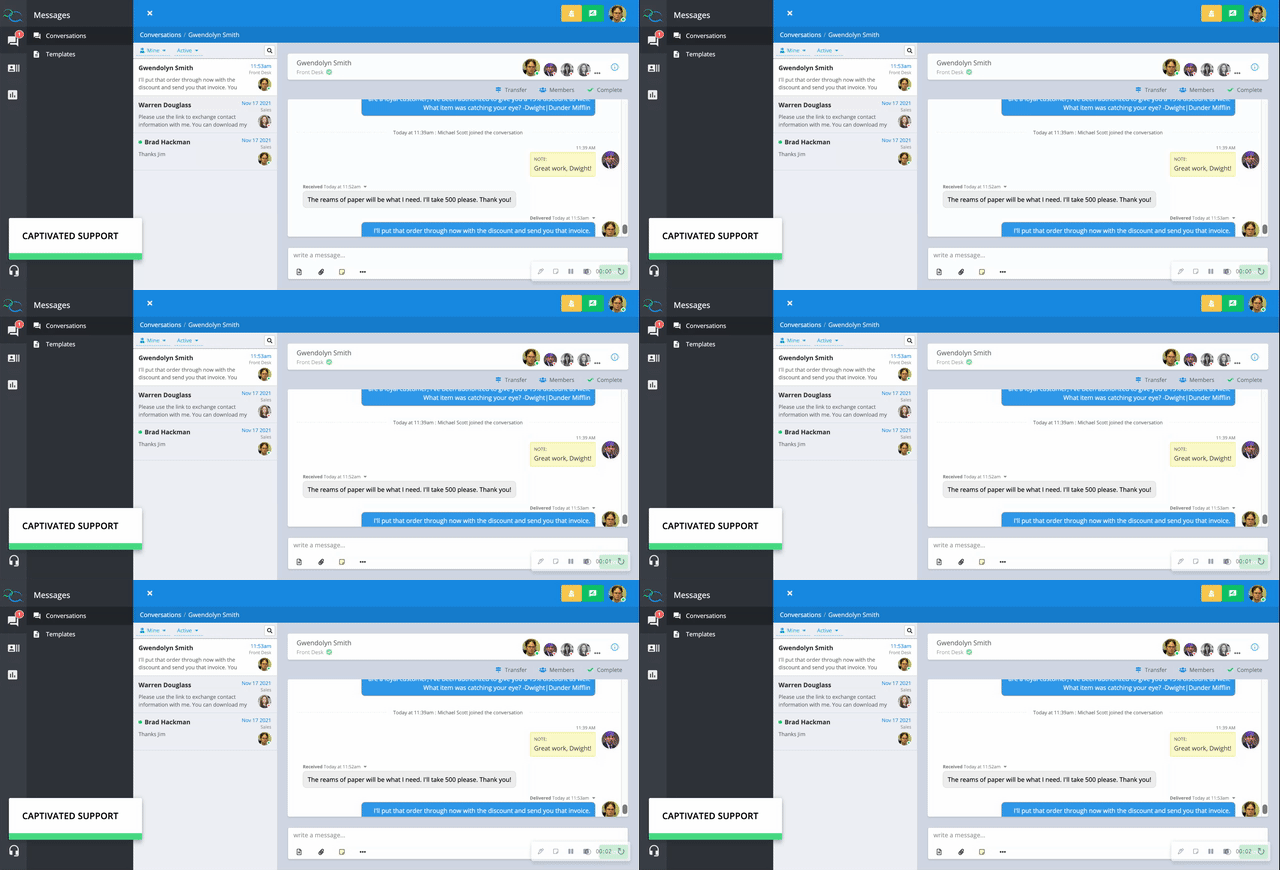
When you’re finished working with a contact, select Complete to close the conversation. Completing conversations helps keep your Active conversation list focused on conversations that still require attention.Only the conversation owner can Complete a conversation.
Completing a Conversation Video Walkthrough
What Happens After You Complete a Conversation?
What happens when the contact messages your business again depends on how the Channel is configured. For some Channels, completing a conversation will unjoin the active Users. If the contact messages again, the conversation may route back to a Queue for an available operator to handle. Other Channels may be configured to keep Users joined after completing. This is helpful for Users who maintain ongoing relationships with their contacts, such as Sales representatives. If your User photo remains in color after completing the conversation, you’re still joined. You can select Leave if you no longer want to remain an active participant.Your organization’s routing and completion settings may vary by Channel. Contact your Captivated Administrator or Captivated Support if you’re unsure how your Channels are configured.
Users With Direct Channels
If you have your own direct texting Channel, incoming messages may route directly to you rather than to a Queue. In this case, completing a conversation does not necessarily change who receives the contact’s next message. Future inbound messages will continue to follow the routing configured for that Channel.Bulk Complete Conversations
Need to clean up a large number of old conversations? Captivated Support can assist with bulk completing conversations. Bulk Complete requests can be based on a specific:- User
- Team
- Account
- Date and time
Carefully review the criteria in your request to make sure the correct conversations are included in the Bulk Complete.