

 Or, you can add a form to any template for quick access.

 Alternatively, we can send your forms via text automatically with automated events. In the example below, a customer texts the keyword “Register” to Scranton’s Office line and the form is sent to their cell phone automatically.
 Once the form is sent, the contact will receive a text with a link to fill out a form right from their phone. In the example below, the contact is viewing Dunder Mifflin’s registration kiosk form. Dunder Mifflin’s form language allows them to gain full opt-ins from their clients upon submission of the registration kiosk.
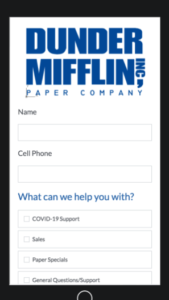
 After hitting the Register button, the filled in form will show up within the Captivated conversation thread. You can select “View PDF” to view the filled out form. You can also have your form set up to email a PDF copy to any email address(es) you designate.
 Additionally view your form responses in our forms dashboard. This dashboard allows you to view all forms or a specific form while choosing a time frame. It shows the contact it was sent to, the time and date it was sent, time and date it was submitted along with the PDF and which Captivated user it was sent by.
You can also export the list to CSV.
Additionally view your form responses in our forms dashboard. This dashboard allows you to view all forms or a specific form while choosing a time frame. It shows the contact it was sent to, the time and date it was sent, time and date it was submitted along with the PDF and which Captivated user it was sent by.
You can also export the list to CSV.

- Questions? You can chat with Captivated’s Support team using the “Support” option in the left-hand menu of our app or text Captivated Support at 317.316.3600