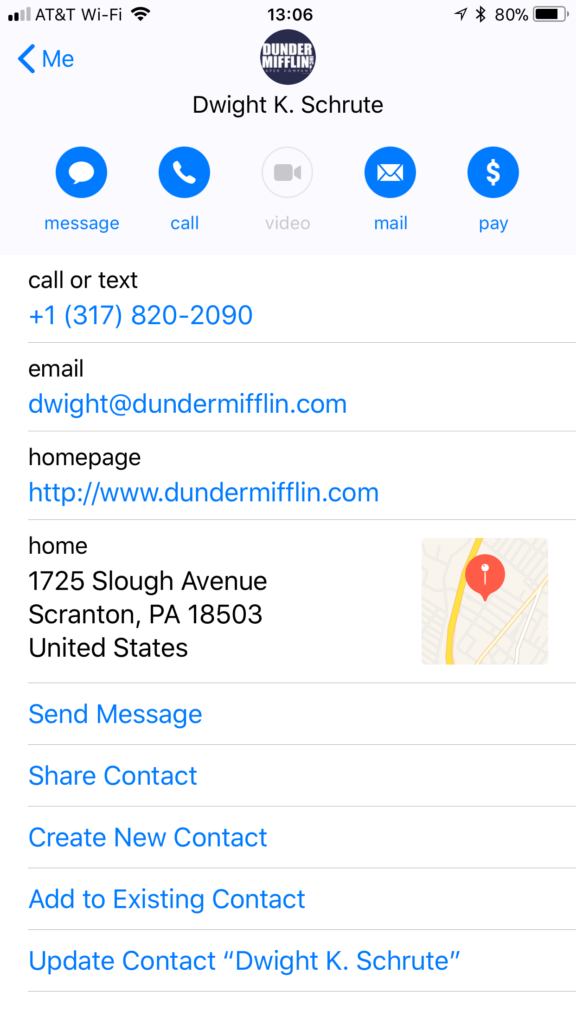
Sending a Contact Card
To send your contact card:- Open a conversation.
- Select the paperclip icon below the message field.
- Choose Attach Contact Card.
- Compose your message.
- Send the message.
Sending your Contact Card Video Walkthrough
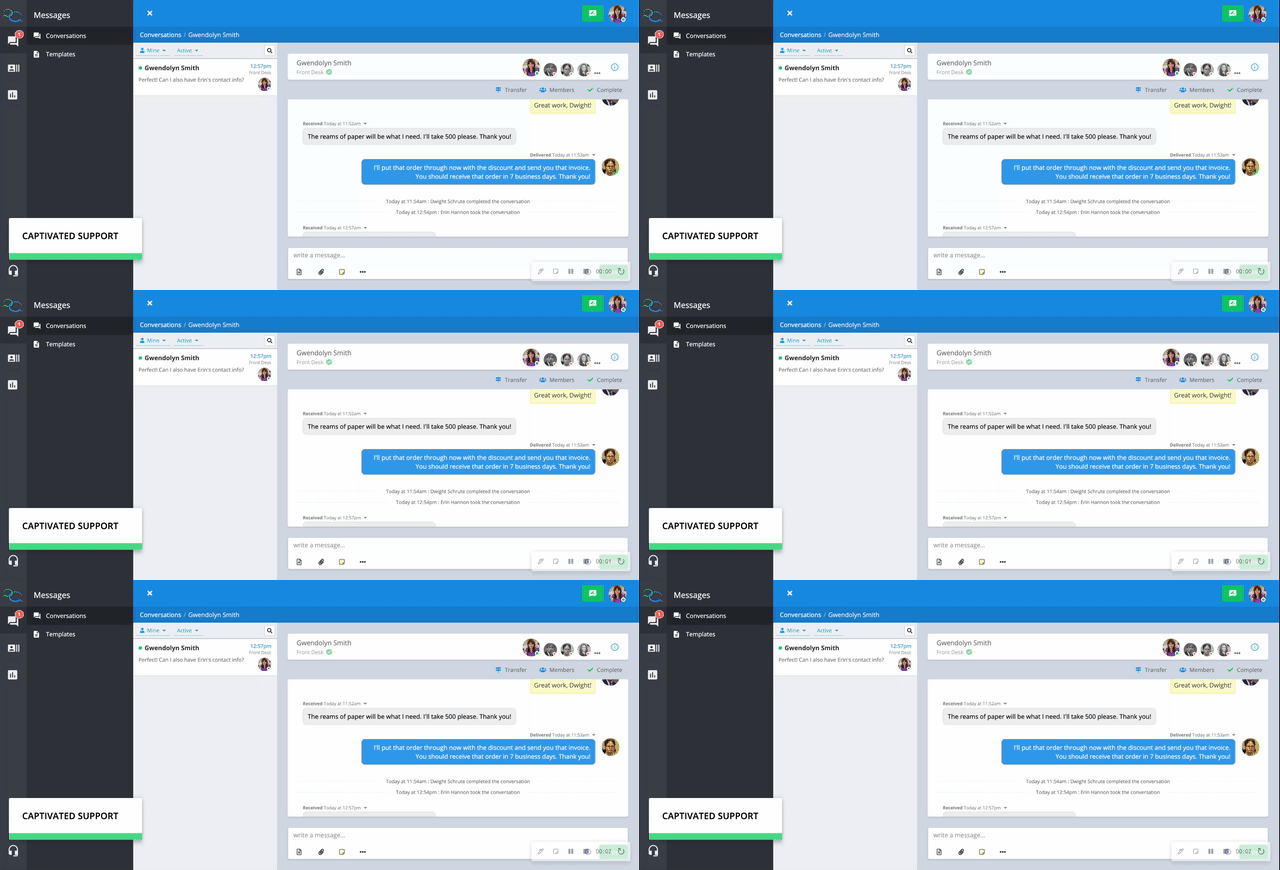
Suggested Message
You can customize your message however you’d like. Here’s a simple example:Hi {{salutation}}, here’s our contact information. Save our contact card so you can easily call or text us whenever you need assistance.
Save Time with Templates
If you frequently send your contact card, consider creating a Message Template with the contact card already attached. This makes it easy to introduce new customers to your business while maintaining a consistent message.
Updating Your Contact Card
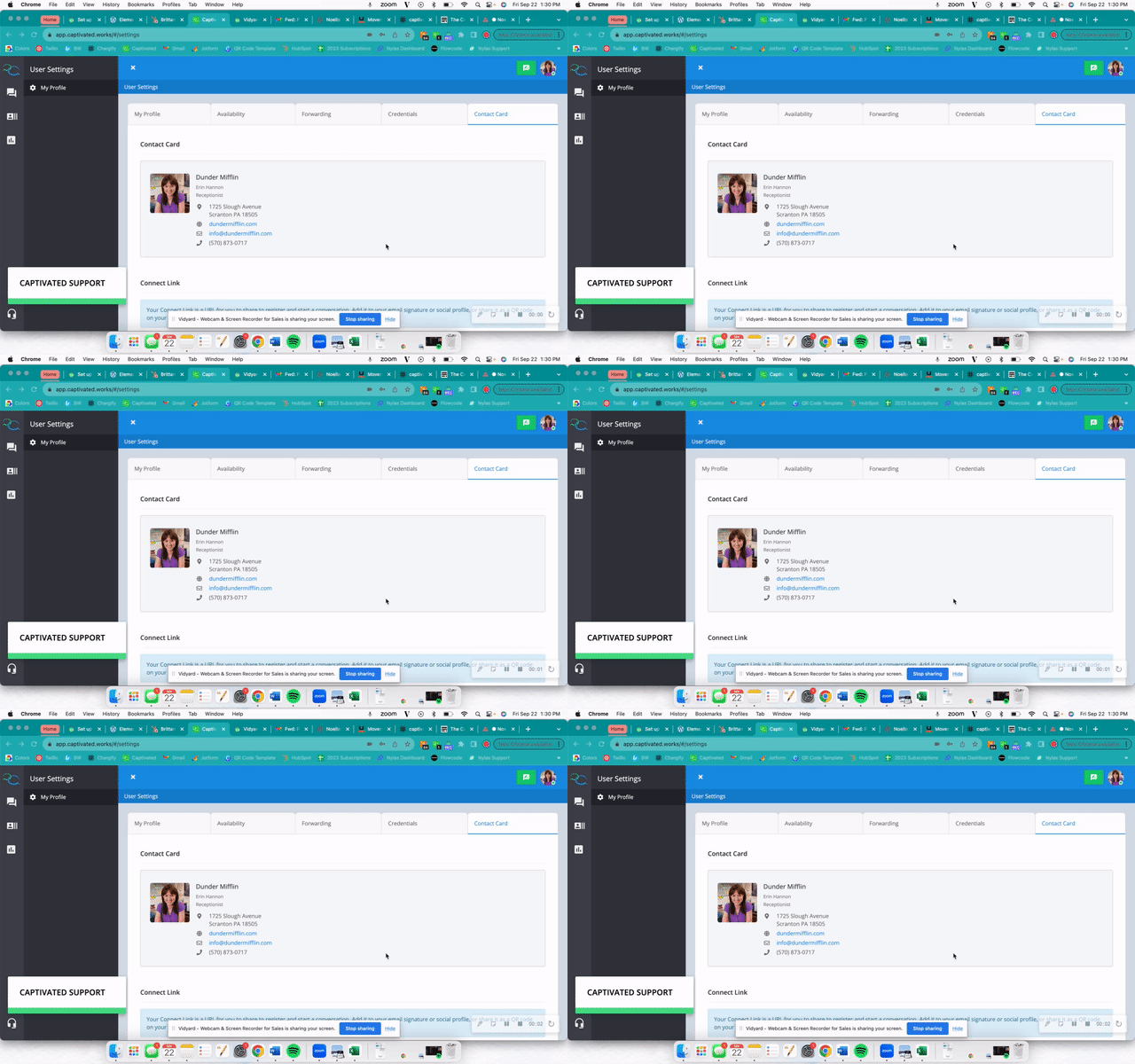
You can update the information displayed on your contact card at any time. To edit your contact card:- Select your profile avatar.
- Choose My Profile.
- Open the Contact Card tab.
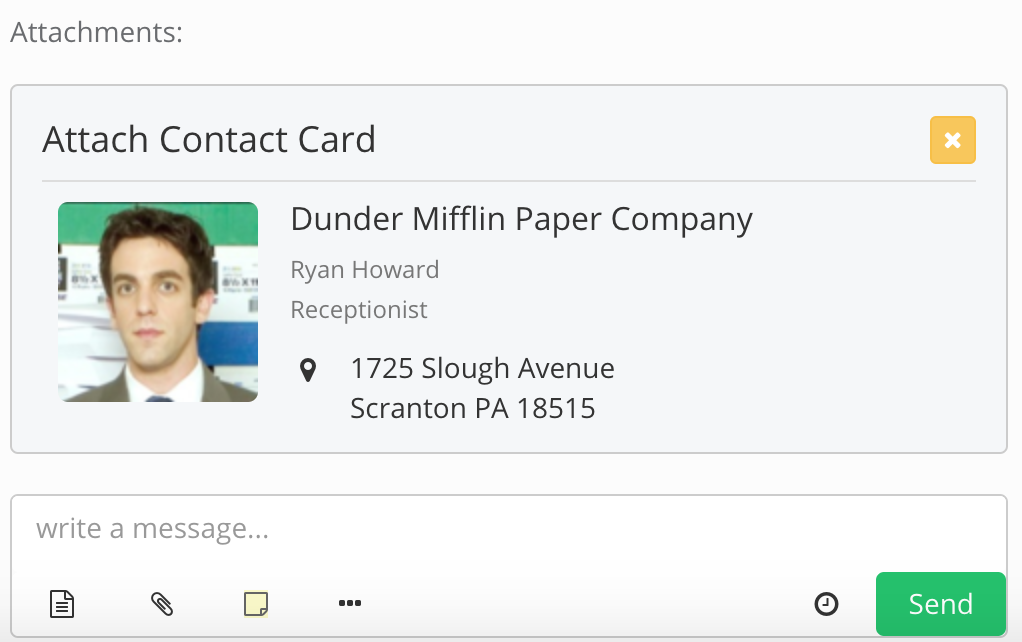
What You Can Edit
You may be able to update:- Display Name
- Job Title
- Email Address
- Profile Photo
- Business phone numbers
- Company information
- Branding
Editing your Contact Card Video Walkthrough
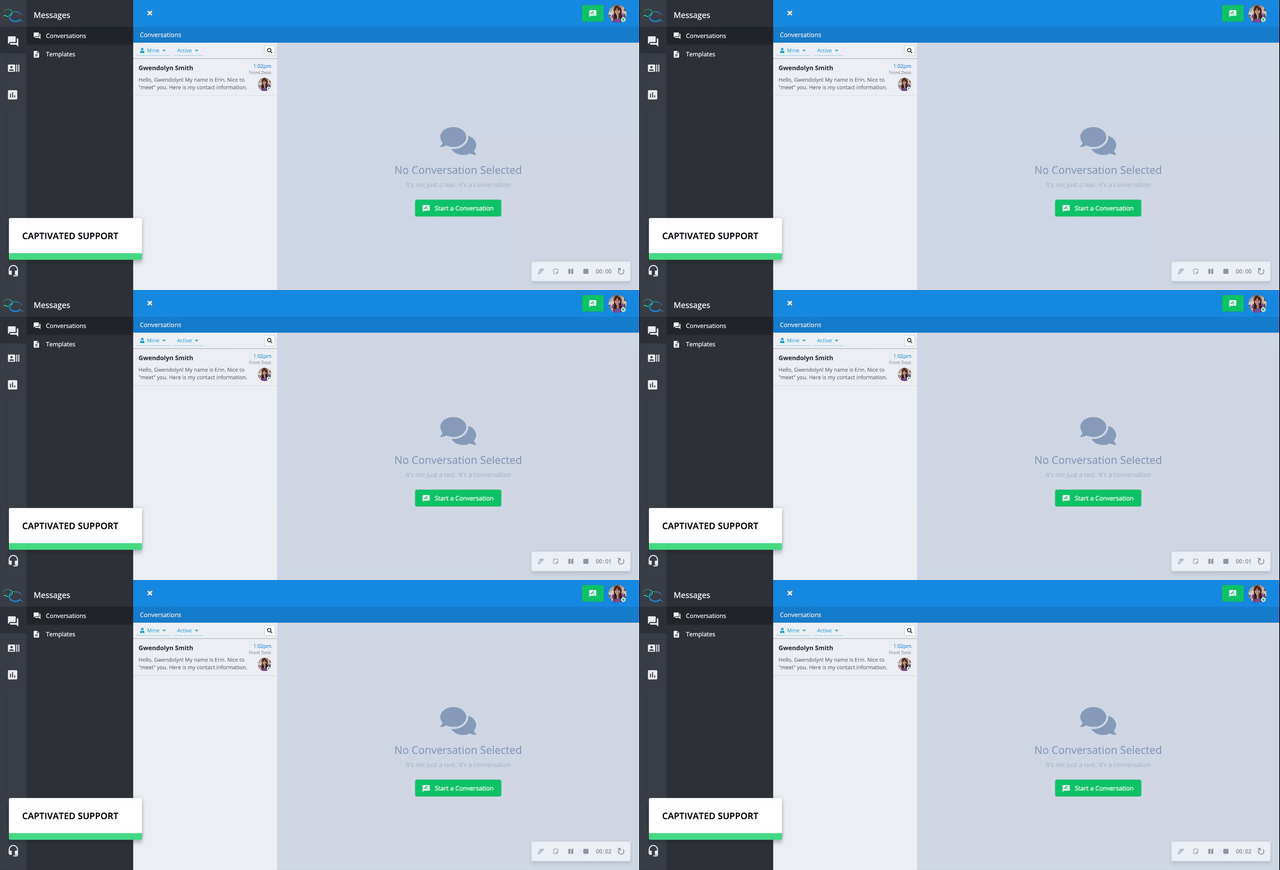
Contact Link & QR Code
Your Contact Card also includes a unique Contact Link and QR Code. Customers can use either option to:- Save your business contact information
- Register to receive text messages
- Opt in to future communications (where applicable)
- Business cards
- Front desks
- Reception areas
- Printed marketing materials
- Email signatures
- Trade shows and events
Contact Link Page and QR Code Registration Video Walkthrough
Best Practices
To get the most value from your Contact Card:- Send it when introducing yourself to a new customer.
- Include it in message templates for common first-time conversations.
- Keep your information up to date.
- Add your Contact Link or QR Code to marketing materials and customer-facing documents to encourage customers to save your business and opt in to text messaging.
Example Contact Card