

- Customer type
- Location
- Service
- Product interest
- Lead status
- Event or campaign
- Communication preference
- Other categories specific to your business
Add or Remove Tags
You can add or remove Tags from an individual contact or multiple contacts at once.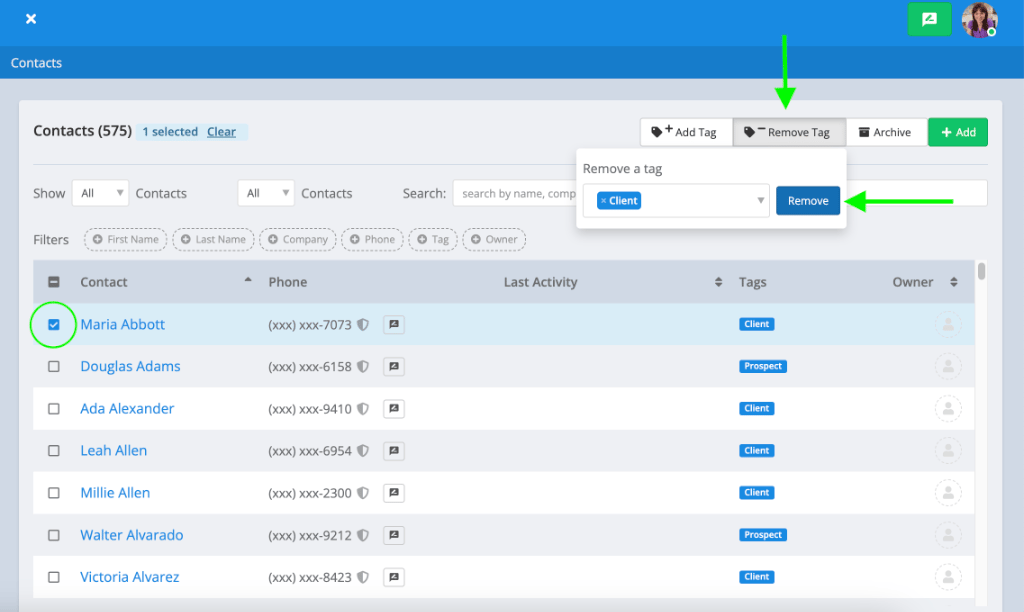
Tag Multiple Contacts
From Contacts:- Select the contacts you’d like to update using the checkboxes next to their names.
- Choose the option to Add or Remove Tags.
- Select the appropriate Tag.
- Apply your changes.
Tag an Individual Contact
You can also manage Tags from an individual contact record.- Open the contact.
- Select Edit.
- Locate the Tags field.
- Add or remove the appropriate Tags.
- Save your changes.
Depending on where you’re managing the contact, you may only be able to select existing Tags rather than create a new one.

Find Contacts Using Tags
Use Advanced Tag Search from your Contacts list to quickly find contacts associated with specific Tags. When selecting multiple Tags, choose whether Captivated should Match Any or Match All.Example
Suppose you select: Lawn Treatment + Indianapolis Match Any would return contacts tagged with Lawn Treatment or Indianapolis. Match All would return only contacts who have both Lawn Treatment and Indianapolis.Rename or Merge Tags
As your Tag library grows, you may need to clean up duplicate or outdated Tags.Rename a Tag
Use the available Tag management options to change the name of an existing Tag. This is helpful when the category is still useful but you’d like to make its name clearer or more consistent.Merge Tags
If you have multiple Tags that represent the same group, you can merge them into a single Tag. For example, if your account contains:Current CustomerCurrent CustomersExisting Customer
Best Practice: Before creating a new Tag, check whether a similar Tag already exists. Consistent naming prevents your Tag library from becoming cluttered with duplicate categories.
Merging Tags Video Walkthrough

Bulk Tag Contacts with a CSV Import
Administrators and users with Contact Import permissions can also add Tags to a large group of contacts using a Contact Import. Add a Tag column to your CSV and enter the Tag that should be associated with each contact. During the import, map the column to the appropriate Tag field. If you’re updating contacts that already exist in Captivated, you’ll have the option to determine how Tags should be handled.
See Importing Contacts for complete instructions.
Using Tags for Announcements
Tags are especially helpful when you regularly communicate with specific groups of contacts. For example, you could use Tags to create groups for:- Customers at a particular location
- Customers receiving a particular service
- Event attendees
- Weather or service notifications
- Customers who have requested specific types of communications
Tag Best Practices
- Use simple, descriptive Tag names.
- Establish consistent naming conventions across your organization.
- Avoid creating duplicate Tags with slightly different names.
- Periodically merge or rename outdated Tags.
- Use Match All to create more specific contact groups.
- Be cautious when replacing Tags during a Contact Import.
- Don’t use Tags as your sole record of whether a contact has provided the appropriate messaging consent.